
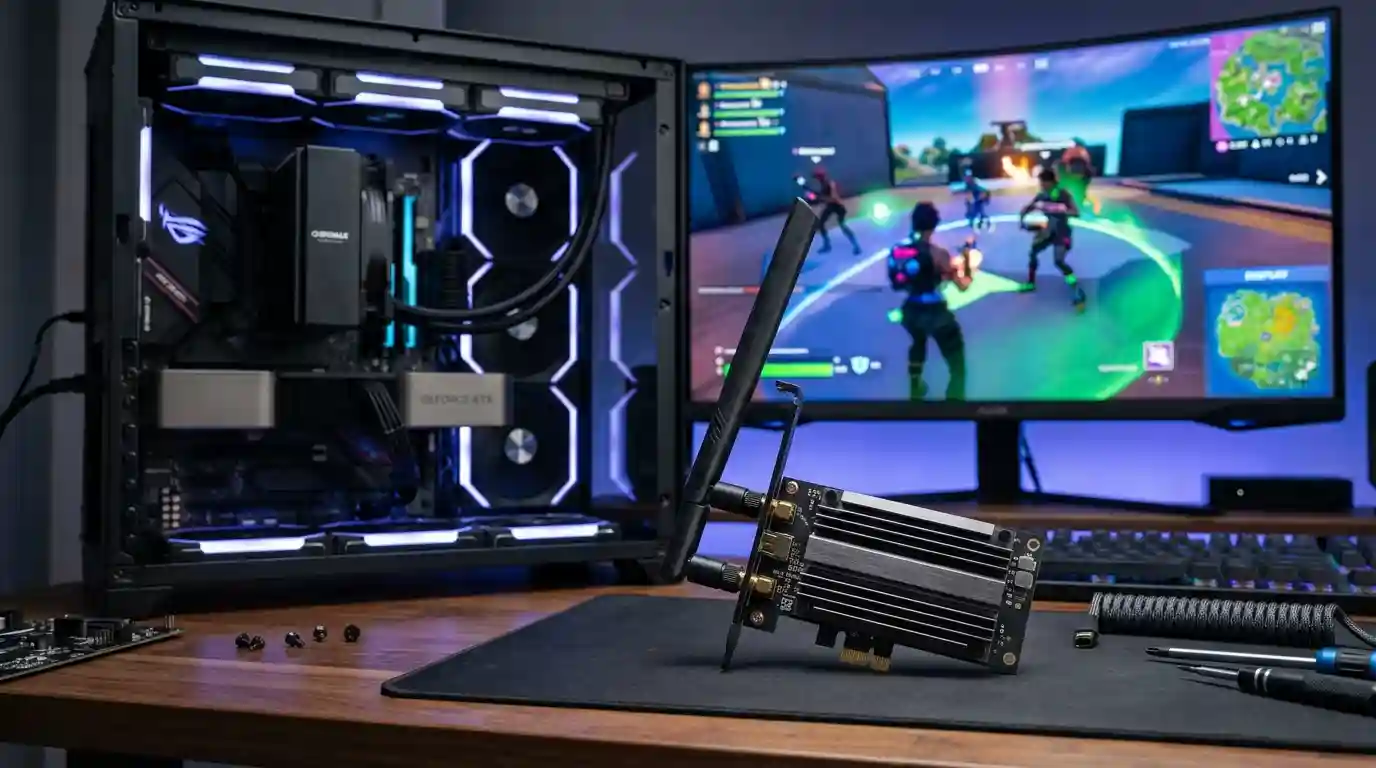
However, choosing the best PC WiFi card for gaming involves more than buying the adapter with the highest advertised speed. Your router, internet plan, home layout, motherboard compatibility, wireless interference, and the games you play all affect real-world results. This guide explains which features matter, how to compare different WiFi cards, and how to choose an option that suits your gaming setup.
What Is a PC WiFi Card for Gaming?
A PC WiFi card is a hardware adapter that allows a desktop computer to connect to a wireless network. Many internal models install into a PCIe slot on the motherboard, while some compact adapters connect through USB. Depending on the model, a card may support modern WiFi standards, external antennas, Bluetooth, or advanced wireless features.
For gamers, the main objective is to maintain a stable connection with low latency and minimal packet loss. A fast wireless connection can help transfer game data efficiently, but it does not automatically guarantee lower ping. Server distance, network congestion, router quality, and internet routing remain important factors.
Gaming technology continues to evolve, as explored in our article on gaming tech trends shaping the future. A suitable network adapter is one practical part of building a dependable gaming environment.
Key Features to Look for in a Gaming WiFi Card
1. Modern WiFi Standards
Check which wireless standards the card supports before purchasing it. WiFi 6 and WiFi 6E can provide useful improvements over older generations in compatible environments. WiFi 6E adds access to the 6 GHz band where permitted and supported, while WiFi 7 products can offer newer capabilities when paired with compatible networking equipment.
Newer standards are not automatically better for every setup. Your router must support the relevant features, and the available frequency bands depend on local regulations. A modern adapter connected to an older router will not deliver every benefit advertised for the newer standard.
2. Low Latency and Connection Stability
Latency, commonly measured as ping in milliseconds, describes how long data takes to travel between your computer and a destination server. Competitive shooters, fighting games, and other reaction-based titles can be sensitive to sudden latency spikes.
When comparing WiFi cards, look for reliable performance under realistic network conditions rather than relying on a maximum speed rating alone. Stable ping, low packet loss, and consistent performance during busy periods are more useful gaming indicators than an impressive headline number.
3. Dual-Band or Tri-Band Connectivity
Many gaming WiFi cards support the 2.4 GHz and 5 GHz bands. Some newer models also support 6 GHz. Each band has different strengths:
- 2.4 GHz: Often provides better reach through walls, but can experience congestion from nearby networks and other devices.
- 5 GHz: Often offers a useful balance of speed and responsiveness when the PC is reasonably close to the router.
- 6 GHz: Can provide additional wireless capacity and less congestion in suitable environments, but typically benefits from a relatively clear, shorter path to the router.
The best band depends on your room layout, router, interference, and signal strength. Test available bands instead of assuming one will always outperform the others.
4. External Antennas and Placement
External antennas can help a desktop receive a stronger signal when positioned appropriately. Some PCIe cards include a separate antenna base that can be placed on a desk rather than behind a metal computer case. This can be useful when the PC sits beneath a desk or inside a cabinet.
Keep antennas away from obstructions where practical, and experiment with their orientation. A more expensive antenna will not necessarily solve every weak-signal problem, especially when the router is far away or separated by several dense walls.
5. PCIe Compatibility and Bluetooth
Before buying an internal WiFi card, check the available PCIe slot, physical clearance, operating-system support, and driver availability. Confirm that the antenna connectors and mounting arrangement suit your case. Some cards also offer Bluetooth, which may require an additional internal USB header or connection to the motherboard.
Bluetooth can be convenient for wireless controllers, headphones, and other peripherals. However, Bluetooth functionality is separate from the WiFi connection, and the precise requirements vary by card model.
PCIe WiFi Card vs USB WiFi Adapter
Both options can connect a desktop to WiFi, but they suit different needs.
PCIe WiFi Cards
An internal PCIe card is often a good choice for a permanent gaming desktop. Depending on the model, it may offer multiple antennas, support for newer wireless standards, and an antenna base that can be positioned away from the computer. Installation requires opening the case and checking motherboard compatibility.
USB WiFi Adapters
A USB adapter is generally easier to install and can be moved between compatible computers. It may suit a compact PC, a temporary setup, or someone who does not want to open the case. Performance varies considerably between models, so check supported standards, antenna design, heat management, and driver support before buying.
If you want a broader look at gaming hardware and related innovations, explore our guide to gaming experiences and gaming technology.
How to Choose the Best PC WiFi Card for Your Setup
For Competitive Online Gaming
Prioritize stable connectivity, reliable drivers, and good performance in your actual room. A quality WiFi 6 or newer adapter may be suitable when your router supports it. If possible, compare wireless performance with an Ethernet connection before spending money on a replacement card. Ethernet generally remains the preferred option for minimizing wireless interference.
For Large Game Downloads and Streaming
Look for an adapter that matches your router’s capabilities and your internet plan. Wider channel support and newer WiFi standards can improve throughput in suitable conditions, but actual download speeds are limited by the slowest part of the connection. A premium card cannot overcome a slow internet package or an overloaded router.
Gamers who stream or use several connected devices should also consider the wider network. Our guide to noise-cancelling technology explores another part of a gaming environment where choosing suitable equipment can improve the overall experience.
For Older Desktop Computers
An older PC may benefit from a modern wireless adapter, but compatibility comes first. Check the operating system, motherboard slots, driver availability, and available physical space. If the computer has limited upgrade options, a USB adapter may be the simpler choice.
For Homes With Weak WiFi Coverage
When the router is far from your gaming room, a new card may help if the existing adapter is the weak point. However, a WiFi card cannot eliminate every coverage problem. Router placement, mesh WiFi, a wired Ethernet run, or a suitable access point may produce a larger improvement.
For additional ideas about connected devices around the home, read our guide on how smart home devices can improve daily living.
How to Install a PCIe Gaming WiFi Card
- Check compatibility: Confirm the card’s interface, operating-system support, physical dimensions, and any Bluetooth connection requirements.
- Shut down the PC: Turn off the computer, disconnect its power cable, and follow appropriate electrostatic-discharge precautions.
- Install the card: Open the case according to the manufacturer’s instructions and secure the adapter in a compatible PCIe slot.
- Connect antennas: Attach the supplied antennas or antenna base and position them for a clear wireless signal.
- Install drivers: Use the manufacturer’s supported driver package when required, then restart the computer if instructed.
- Connect and test: Join your WiFi network, test signal strength, check ping consistency, and run a real gaming session.
If you are unfamiliar with PC hardware installation, consult the card manufacturer’s instructions or ask a qualified technician for assistance.
Ways to Improve Gaming WiFi Performance
Buying a new adapter is only one part of optimizing your connection. Try these practical steps before deciding that the card is the problem:
- Place the router in an open, elevated position when possible.
- Use the 5 GHz or 6 GHz band when it provides a stronger, more stable connection in your room.
- Move the PC’s external antenna away from large metal objects and obstructions.
- Update the WiFi adapter driver and router firmware using official, compatible releases.
- Reduce unnecessary network congestion during competitive gaming sessions.
- Check for packet loss and ping spikes rather than measuring download speed alone.
- Use Ethernet for latency-sensitive play when a practical wired connection is available.
For players who use other gaming systems or online worlds, our article about enhancing the MapleStory gaming experience offers related gaming content. You can also explore this PC WiFi card guide when revisiting the key selection criteria on this page.
Common Mistakes to Avoid When Buying a Gaming WiFi Card
- Choosing by advertised speed alone: Maximum theoretical throughput does not guarantee lower ping or better real-world performance.
- Ignoring router compatibility: The router and adapter must support the features you want to use.
- Overlooking the antenna position: A capable card may perform poorly when its antennas are blocked by a desk, wall, or metal case.
- Forgetting driver support: Check whether the manufacturer supports your operating system.
- Expecting WiFi to fix an internet outage: An adapter cannot resolve problems caused by your internet service provider or a distant game server.
- Buying unnecessary premium features: Match the card to your router, gaming needs, and budget rather than paying for features you cannot use.
Technology changes quickly, so it is also worth understanding how broader developments influence connected devices. Our overview of AI tools and emerging technology provides additional context about the wider technology landscape.
Frequently Asked Questions
Does a WiFi card reduce ping in games?
It can help if your current adapter has weak reception, unstable drivers, or poor wireless performance. However, ping also depends on router conditions, interference, internet routing, and server distance. A replacement card cannot guarantee lower latency.
Is WiFi 6 enough for PC gaming?
For many gaming setups, WiFi 6 is more than adequate when paired with a compatible router and a strong signal. Newer standards can offer additional capabilities, but the benefit depends on the equipment and environment.
Is a PCIe card better than a USB WiFi adapter?
A PCIe card can be a strong long-term option for a desktop, particularly when it includes well-positioned external antennas. A USB adapter is easier to install and move between devices. The better option depends on the specific model and your setup.
Should I use 2.4 GHz or 5 GHz for gaming?
Try 5 GHz first if your PC receives a strong signal, as it often provides good throughput with less congestion. If the signal is weak at that frequency, 2.4 GHz may be more stable. Test both where possible.
Can a WiFi card improve game download speeds?
Yes, if the existing adapter is limiting your wireless throughput and the router and internet connection can provide higher speeds. The improvement may be small if your current adapter already meets your connection’s needs.
Final Thoughts
The best PC WiFi card for gaming is one that matches your motherboard, router, operating system, budget, and actual wireless conditions. Prioritize consistent connectivity, appropriate WiFi standards, dependable drivers, and effective antenna placement instead of choosing solely by advertised speed.Before upgrading, test your current connection and identify the real problem. If weak wireless reception is the cause, a suitable PCIe WiFi card may improve your experience. If the issue comes from network congestion, router placement, or your internet service, addressing that cause may deliver better results. For competitive gaming, a reliable Ethernet connection remains worth considering whenever practical.When comparing a gaming network upgrade with other hardware and software improvements, it helps to understand the broader technology solutions landscape and the role of digital technology innovation in modern computing.Computer users interested in related developments can also explore technology-driven business solutions and the wider topic of digital transformation and technology adoption.For readers interested in technical problem-solving, the article on Python tools and developer workflows provides another perspective on practical computing topics.Gaming hardware is only one part of a complete setup. Related subjects include audio and entertainment technology and the use of emerging AI tools in everyday digital workflows.